Commands
Usage
Info
Screenshots below serve to provide guidance on the Discord UI. Commands and descriptions shown may change as EnduraBot continues being developed.
EnduraBot uses Discord slash commands rather than prefix commands (e.g !about). This is done because a) the features that come with slash commands make the bot more convenient and b) it is how Discord prefers commands be made.
A dynamic list of existing commands can be generated by typing / and then clicking the logo for the bot.
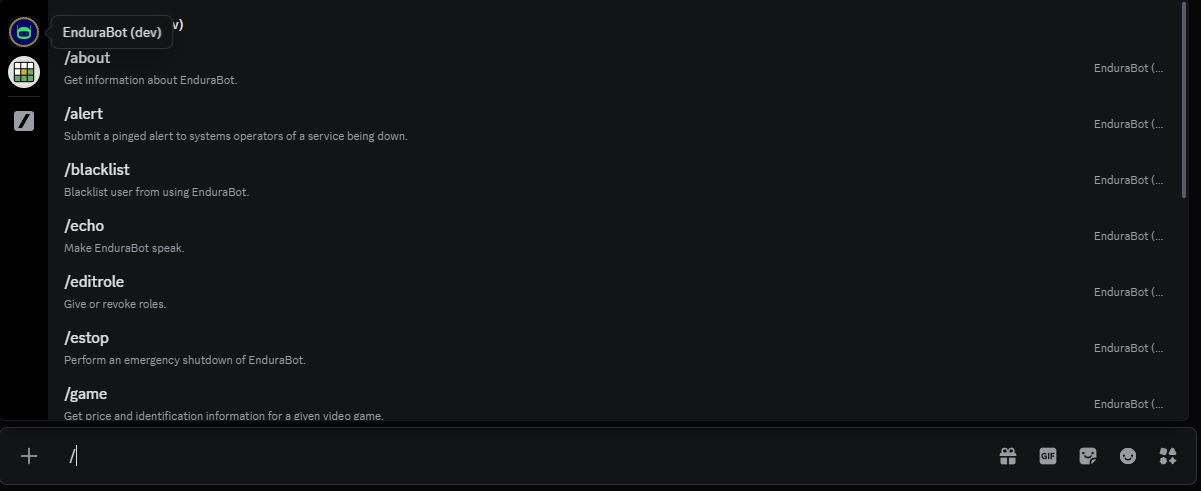
The Discord slash command interface.
Certain commands have multiple arguments. In cases where an argument's purpose cannot be reasonably interpreted a description has been given to it.
To view an argument's description, while typing out a command, click to the right of whichever argument is actively requesting input. This will provide a list of them above the input box. Note how each argument has a description to the right.
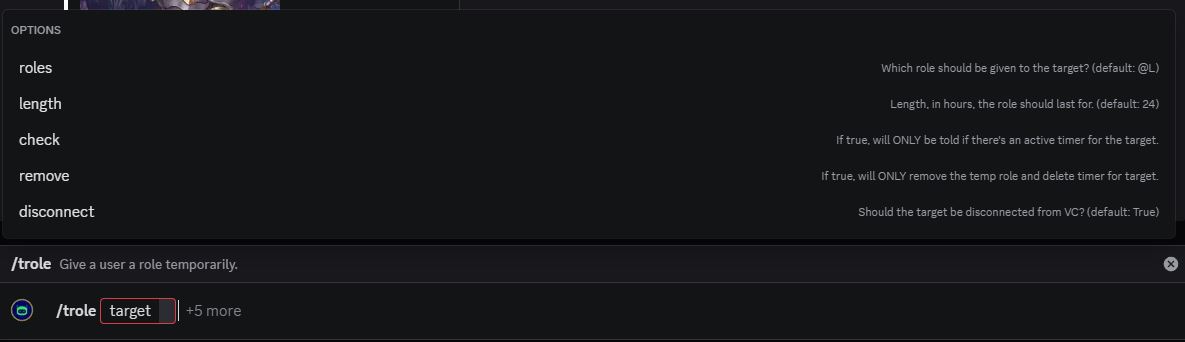
The Discord slash command interface listing command arguments.
Commands List
| Command | Description | Introduced In |
|---|---|---|
/about |
Get information about EnduraBot | v1.0 |
/blacklist |
Blacklist a user from using EnduraBot | v2.2 |
/cl-add |
Link a voice and text channel together. | v2.11 |
/cl-list |
List the channels that are linked together. | v2.11 |
/cl-remove |
Remove the link between a voice and text channel. | v2.11 |
/echo |
Make EnduraBot speak. | v2.1 |
/editrole |
Give or revoke roles. | v1.0 |
/flip |
Flip a coin! | v2.12 |
/info |
Quick access to community relevant information. | v1.0 |
/monitor-list |
List users being monitored. | v2.12 |
/monitor |
Add or remove someone from being monitored on join. | v2.5 |
/ping |
Ping, pong! Debugging tool. | v2.12 |
/reboot |
Reboot EnduraBot. | v2.1 |
/roll |
Get a random number! | v2.12 |
/rquote-debug |
Debugging tool. | v2.1 |
/rquote |
Take an out of context quote and give it the wrong context. | v1.21 |
/trole |
Give a user a role temporarily. | v2.7 |
-
Previously known as
/bibleq; renamed to/rquotein v1.2 when randomly chosen themes were introduced. ↩